
Anaconda is an environment that people write Python programming languages for data science and machine learning. Anaconda has versions for Windows, Linux and also Macbook. Within Anaconda, there are various applications, and people use Jupyter Notebook to write and execute Python code more easier.
To set up Python environment (Anaconda/Jupyter Notebook) on your computer and start your first line of data science/machine learning code, follow guidelines below. These steps are demonstrated on Windows system, it is similar to do it on other systems like Macbook.
Step 1: First go to website below (https://www.Anaconda.com/products/individual)

Step 2: Click download (this may be different on a different device)
Step 3: Open the downloaded file and you will see the window below. Click next

Step 4: You will see the window below and click I agree

Step 6: Select where to put Anaconda and click next

Step 7: If you already installed some type of Python in the past on your computer and you want a clean start, you might need to remove Python that you installed previously.
Step 8: Select register Anaconda3 as my default Python 3.9 then click install

Step 9: After finishing installing Anaconda, click next

Step 10: Depending on how good your computer is this should take 1 minute to a hour(took me 30 minutes) then click finish
Step 11: Open Anaconda from the windows start button and it should look like the window below

Step 12: Click Jupyter Notebook and this window should open

Step 13: Select google chrome and click ok and Jupyter should open from google chrome

Step 14: Go to the top right corner and click new then select Python 3

Step 15: You should see the window below. This is the place where you write your Python programs and see the outputs from the programs you wrote.

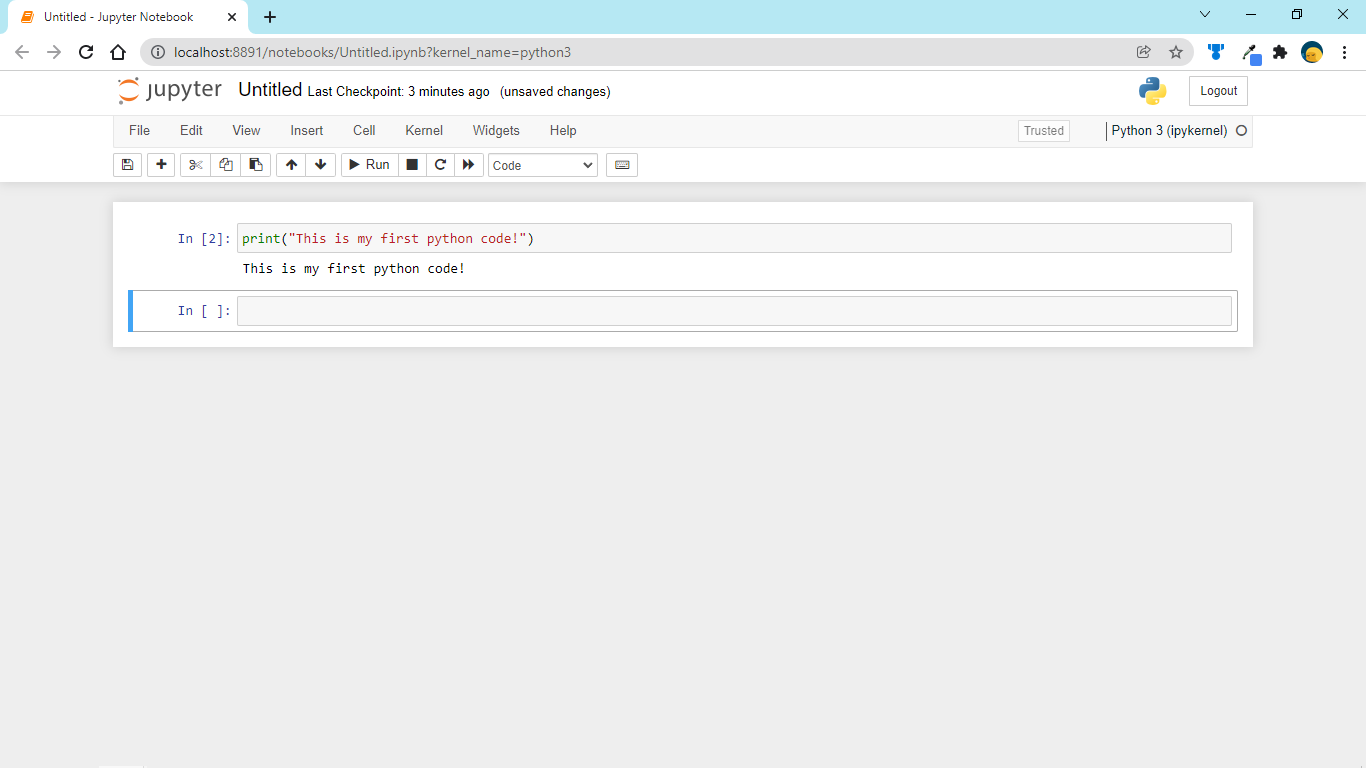
Step 16: Start to write your Python program and see the output just like the window below.

Leave a Reply